Fun part / Explore the demo
Explore the demo
Right after install, the project is already a working site. Two commands, one preview, and you can click around the agntcms demo before you decide what to make it look like.
See the demo running — two minutes#
As soon as
pnpm create agntcms-app finishes (or Claude finishes scaffolding for you — see Install), the project is already a working site. You do not need to configure anything to look at it.Open the project folder in a fresh Claude Code session and say:
start the dev server.
Claude runs
pnpm dev, picks a free port, and gives you back a preview URL — usually http://localhost:3000. Open it. You should see the agntcms demo: home page, blog, docs, contact, around thirty section types in use. Click around. This is your starting point.Why ask Claude instead of running `pnpm dev` yourself? You can — same command either way. But the moment you start talking to Claude inside the project, the project's skills (`/agntcms-init`, `/agntcms-sections`, ...) are in context. The next thing you do is going to be one of those skills, so you may as well already be in the loop.
What you are looking at#
The demo ships about thirty section types and a handful of content pages — home, blog index and posts, docs, contact, a 404. The copy is about agntcms itself, by design: every page doubles as a working example of the section it uses.
Use this time to get a feel for the framework — what blocks exist, how a typical content page is composed, what the admin UI looks like at
/admin. No design decisions yet, no commitment.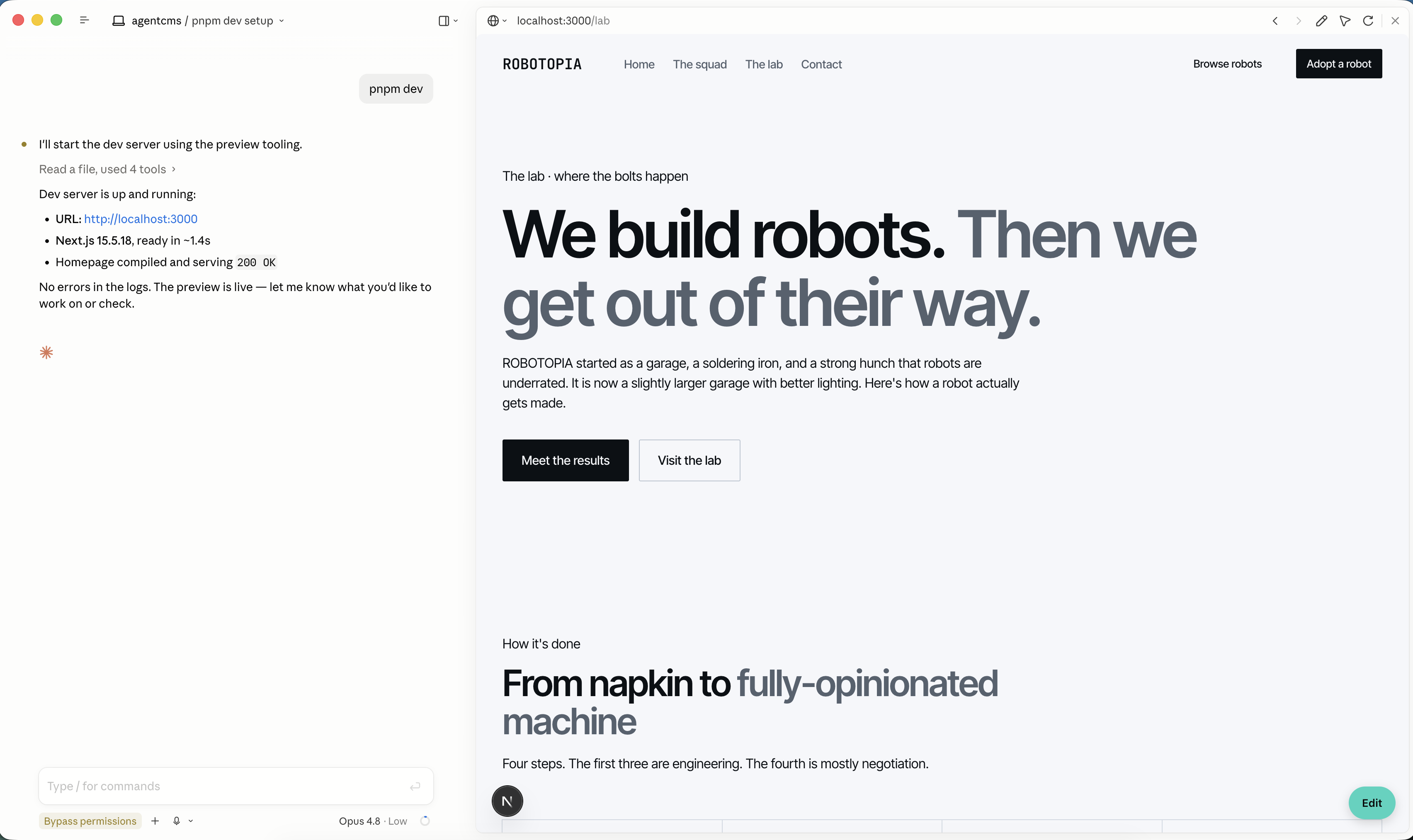
What to do next#
- Want your own design? Go to Setup personalised project.
/agntcms-initwipes the demo and rebuilds the site from your Claude Design bundles in about an hour. - Want to edit demo copy first to feel out the flow? Open the admin panel at
/adminand use the inline editor — see Editing → Getting started. - Just curious how it is built? Project structure walks the directory layout; Sections explains the unit of composition.