Getting started
What you need#
- Claude Code Desktop. The primary editing interface — installed once, used every time you touch the site.
- The project on your machine. If a developer has built the site and handed it over, they will show you the folder and how to open it in Claude Code Desktop. If you are starting from scratch and there is no developer, see Install.
That is it. Every skill that knows how to edit the site is already inside the project — Claude Code Desktop picks them up automatically the moment you open the folder.
The recommended path — Claude Code Desktop with built-in preview#
This is what agntcms is designed around. Three steps, one window.
1. Open the project folder in Claude Code Desktop. A fresh session in the project root.
2. Ask Claude to start the site.
start the dev server.
Claude runs
pnpm dev, finds a free port, hands back a preview URL.3. Ask Claude to start a preview. A panel opens inside the Claude Code window and loads your site. You now have the conversation on one side and the live preview on the other — same window, same hotkeys, no tab juggling.
Why this matters. With the preview pane embedded next to the chat, you can point at a block ("this hero, make it warmer"), the agent makes the change, the preview refreshes — all without leaving Claude Code Desktop. The whole loop is one motion.
This preview pane is Claude Code Desktop's feature — its job is to render the site next to the conversation. It does not know about your content. The editing surface comes from agntcms itself, layered on top — see the next-but-one section.
The alternative — terminal + browser#
It also works the old way: run
pnpm dev in a terminal, open http://localhost:3000 in your usual browser, keep Claude Code Desktop in another window. Same conversation, same skills, same agntcms preview mode (next section).It works — but it is boring. You lose Claude Code Desktop's preview pane, you switch windows for every action, and you cannot use Claude Code Desktop's built-in browser tools (screenshots, console inspection, eval shortcuts) on your site. Use it as a fallback if Claude Code Desktop's preview is unavailable; do not make it your default.
How to start a conversation#
The simplest move is to write the task in plain text:
help me edit the site.
create a team page — three staff cards with photo, name, and role.
rewrite the hero on the home page more warmly.
roll back the last publish of /pricing.Claude Code Desktop already knows this is an agntcms project. The skills are loaded; they know how to create pages, edit sections, publish, and roll back. You do not memorise skill names — state the task, the agent picks the skill.
If the request is ambiguous, the agent asks a clarifying question. Answer in plain text.
agntcms preview mode — the inline editor on top of Claude's preview#
Separate from Claude Code Desktop's preview pane is agntcms's own preview mode. It is a feature of the site itself, and it works the same whether the site is being shown inside Claude Code Desktop's preview pane or in a plain browser tab.
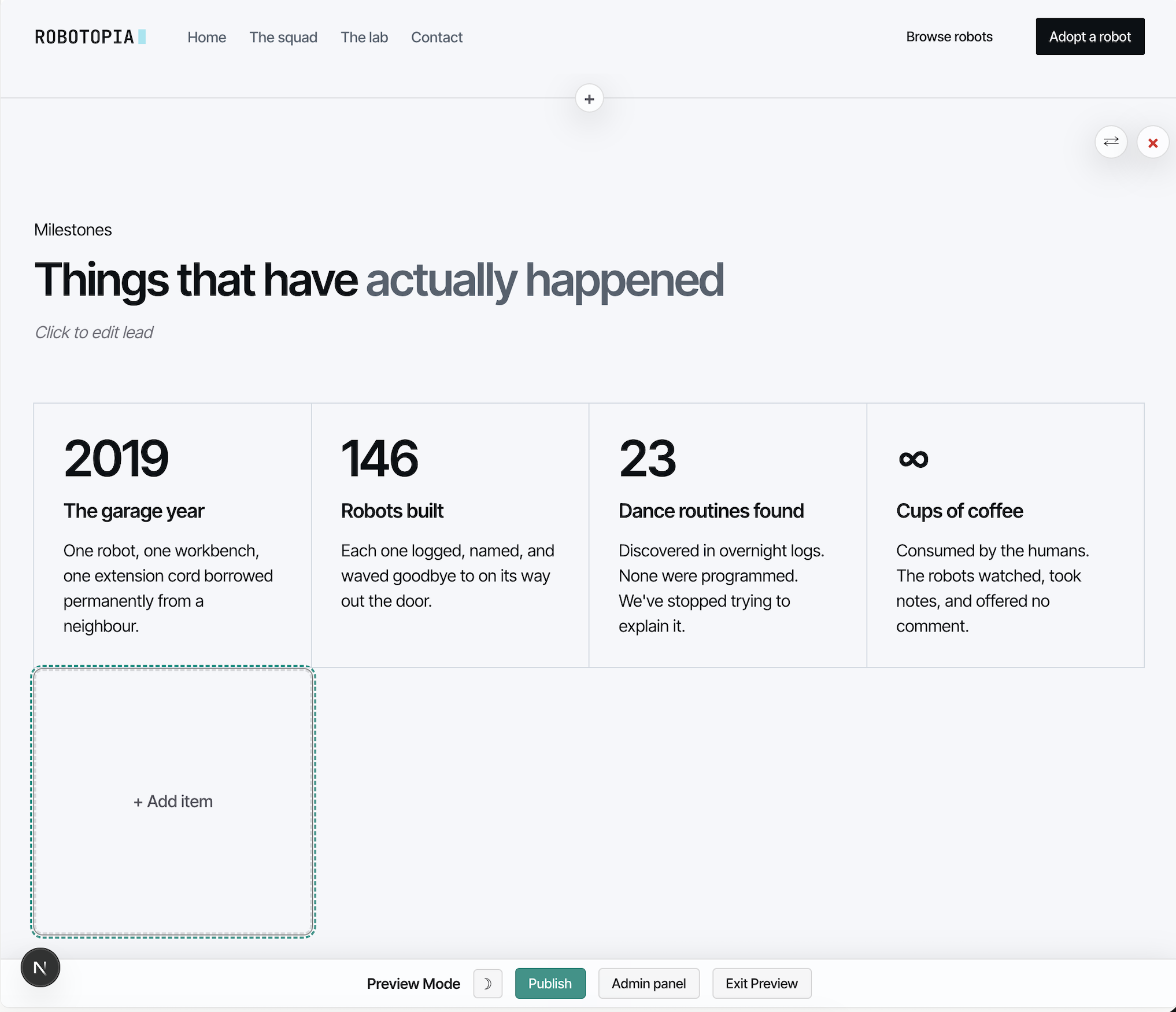
How to turn it on. Look at the bottom-right corner of the rendered page — there is a small button. Click it. A toolbar appears at the bottom of the page ("Preview Mode / Publish / Discard draft / Exit Preview"). You are now in agntcms preview mode.
Two different previews, do not confuse them. Claude Code Desktop's preview pane renders the site next to the chat — that is Claude's feature. agntcms's preview mode adds inline editing tools on top of the rendered site — that is ours. They stack: Claude's pane shows the site, our mode lets you edit it inline. The same agntcms preview mode also works in a regular browser if you take the terminal-and-browser path.
In agntcms preview mode you get three tools, ordered from light to heavy.
Inline text editing#
Click any text with a hover outline. A modal opens with the markdown source on one side and a preview on the other. Edit, save — change lands in the draft.
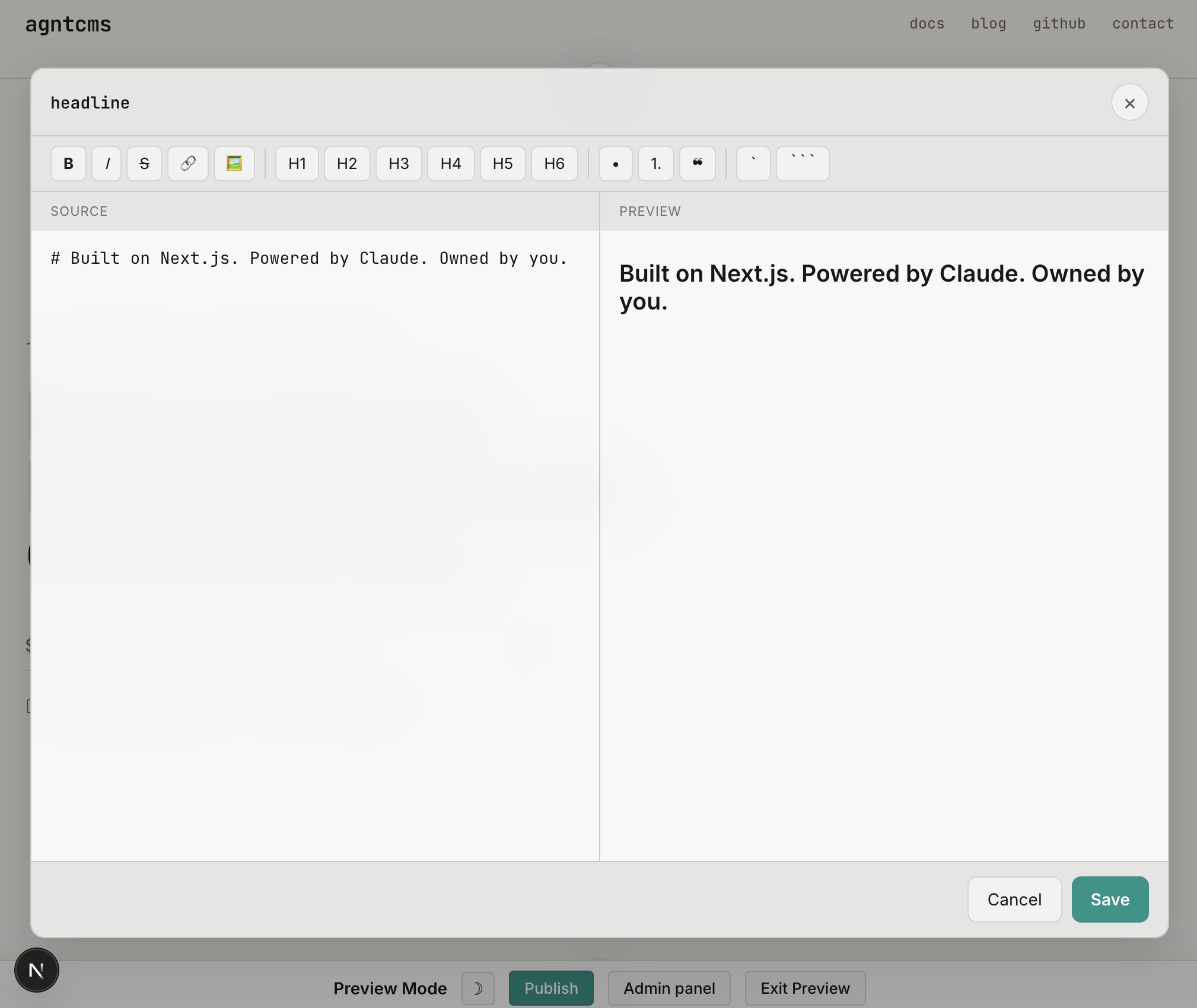
Use it for: a typo, a one-sentence rewrite, a heading tweak. Faster than typing a request. For anything bigger — tone, structure, multi-block edits — go back to the conversation in Claude Code Desktop.
Section replace#
Next to any section there is a replace control. It opens a modal where you pick a different section type to swap in. This is a manual replace: the new section comes in with default placeholder data, and you fill it from there.
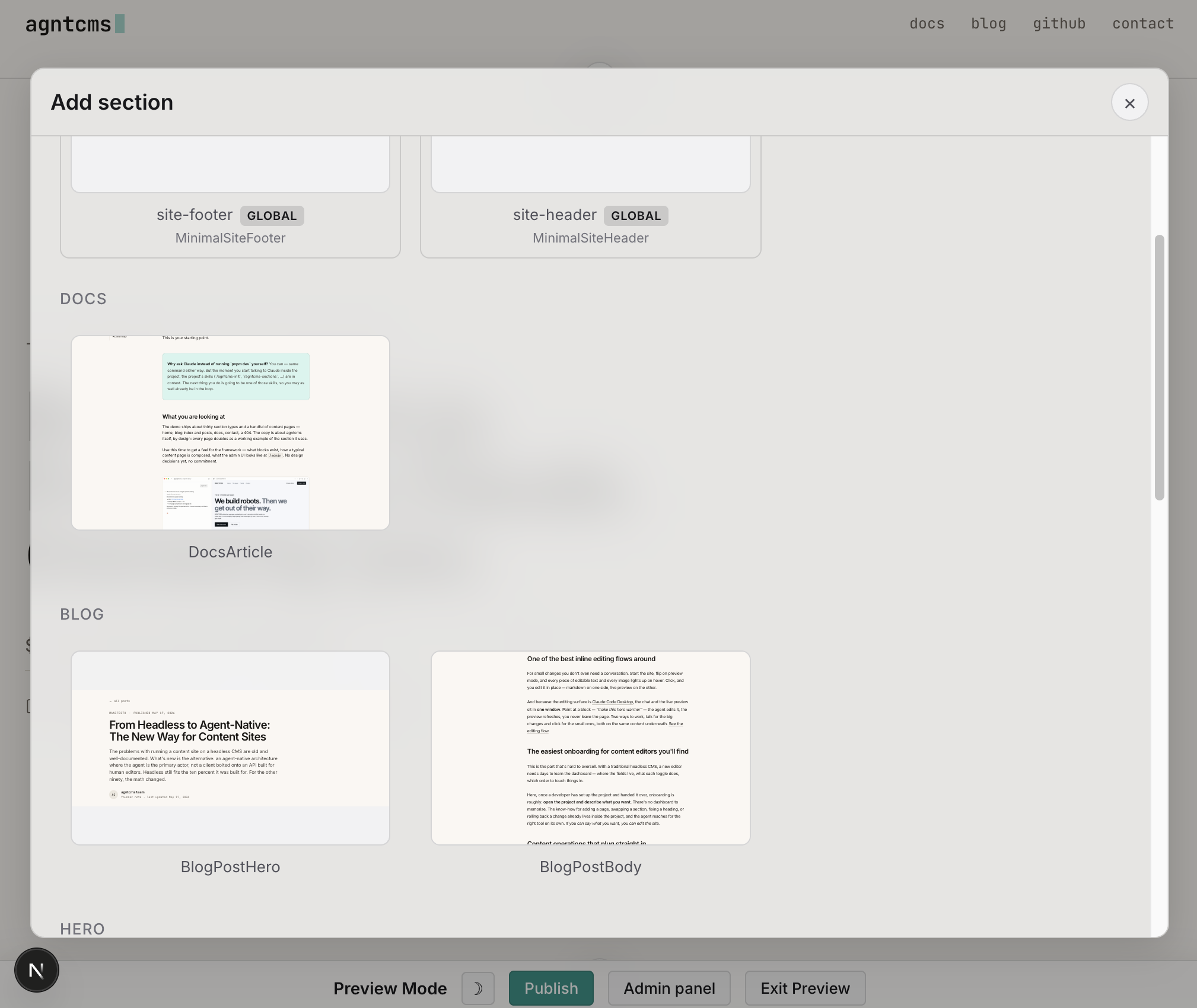
Recommended: let Claude Code do the replace. Instead of swapping by hand, select the section and tell Claude Code in the conversation what you want it to become — turn this hero into a pricing table, make this a three-column feature grid. Claude not only swaps the section type but migrates and adapts the existing content into it, so you do not start from empty placeholders.
Admin modal — pages, SEO, globals#
In the corner of the preview-mode toolbar there is an admin icon. Click it to open a modal with two tabs:
- Pages — every page on the site, with publish state, draft state, and last-edited time. Open a page to edit metadata (SEO title, description), view its version history, or delete it.
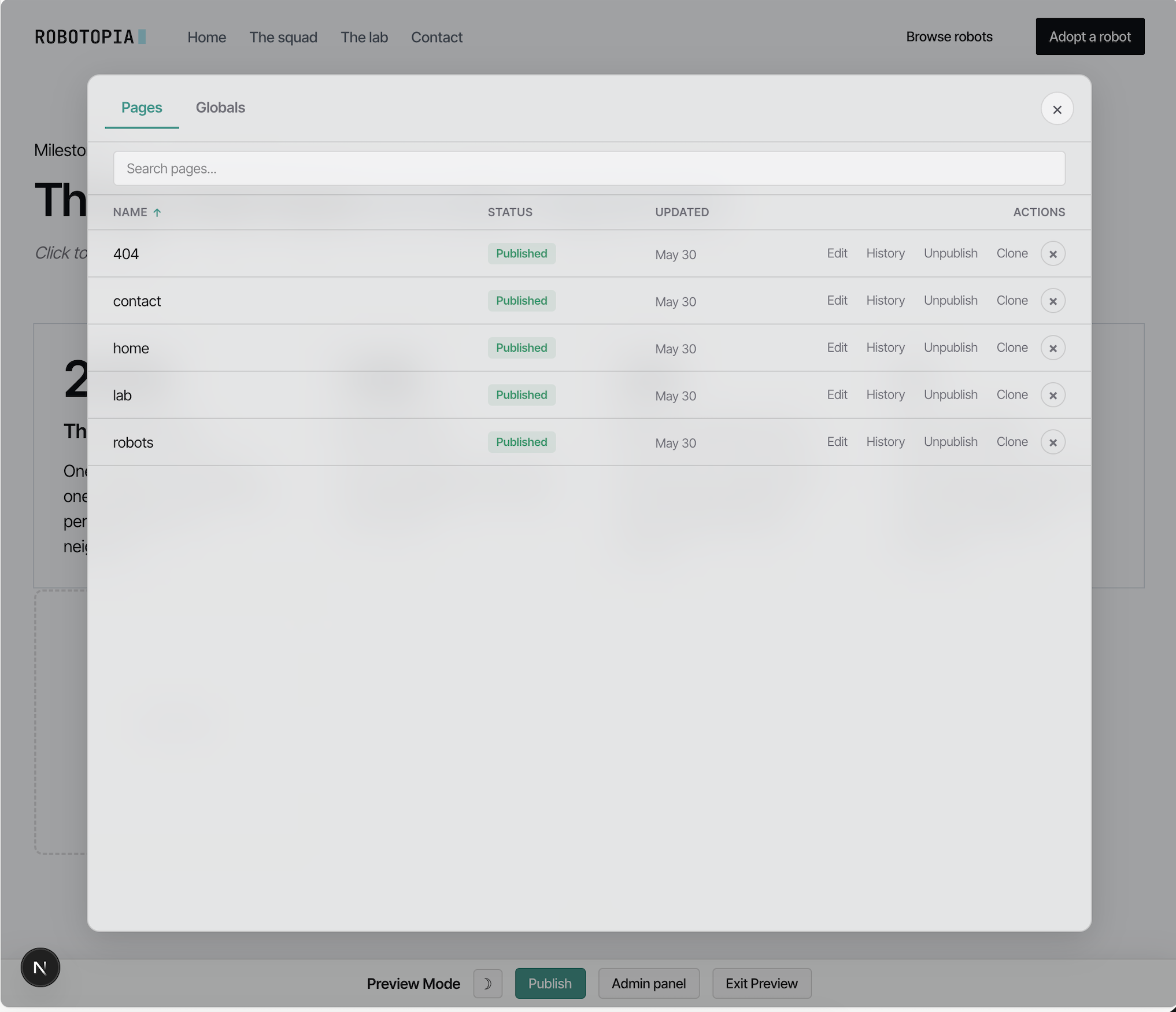
- Globals — content shared across every page: header, footer, announcement bar, site meta. Edited the same way as a page, but takes effect everywhere at once.
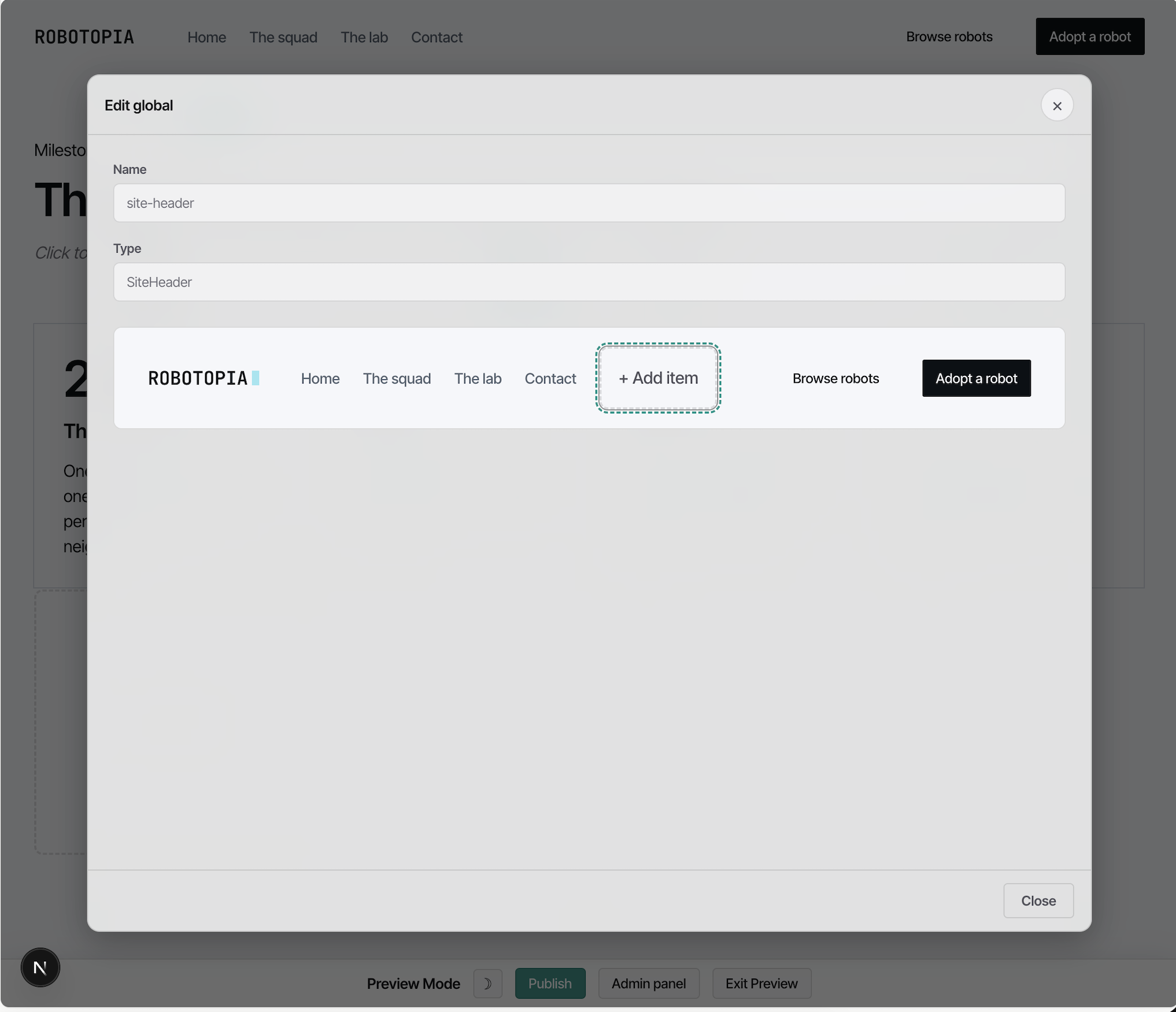
This is the place to manage pages, SEO, and globals by hand — the structured, click-driven side of the editor. Faster than the conversation for: "which pages exist and what state are they in?", "set SEO title and description for /about", "swap the announcement bar copy".
The important limit#
In v0.5, editing only works while the local dev server and Claude Code Desktop are running. The live site has no admin and no agent — it is a plain fast Next.js app with no interactive editing, and agntcms preview mode is stripped out of the production build entirely.
That means: to change anything you run the project locally, edit through Claude Code Desktop, publish, then deploy. See Publishing and deploy.